 COME
COMEOpen COME after Android reports installation complete
Use the recognised installed-app entry and verify its first screen before beginning account tasks.
Work through this situation
A home-screen shortcut and a saved APK file can look similar. Open the app entry once, read any permission request in context and use the existing-account route when applicable.
What to check and why
Choose the installed-app entry from Android rather than selecting the APK again. The package can remain in Downloads after installation, and opening it may bring back an installer instead of the app. A home-screen shortcut should also be distinguished from a browser bookmark or a duplicate icon.
On the first opening, read the expected product screen and any permission prompt in context. If you already have an account, use its recognised login or recovery route. Installation completion does not prove a signed-in session. If the app fails to load, record that new symptom separately from the successful installer result so help can address the correct stage.
Recognise the relevant screen
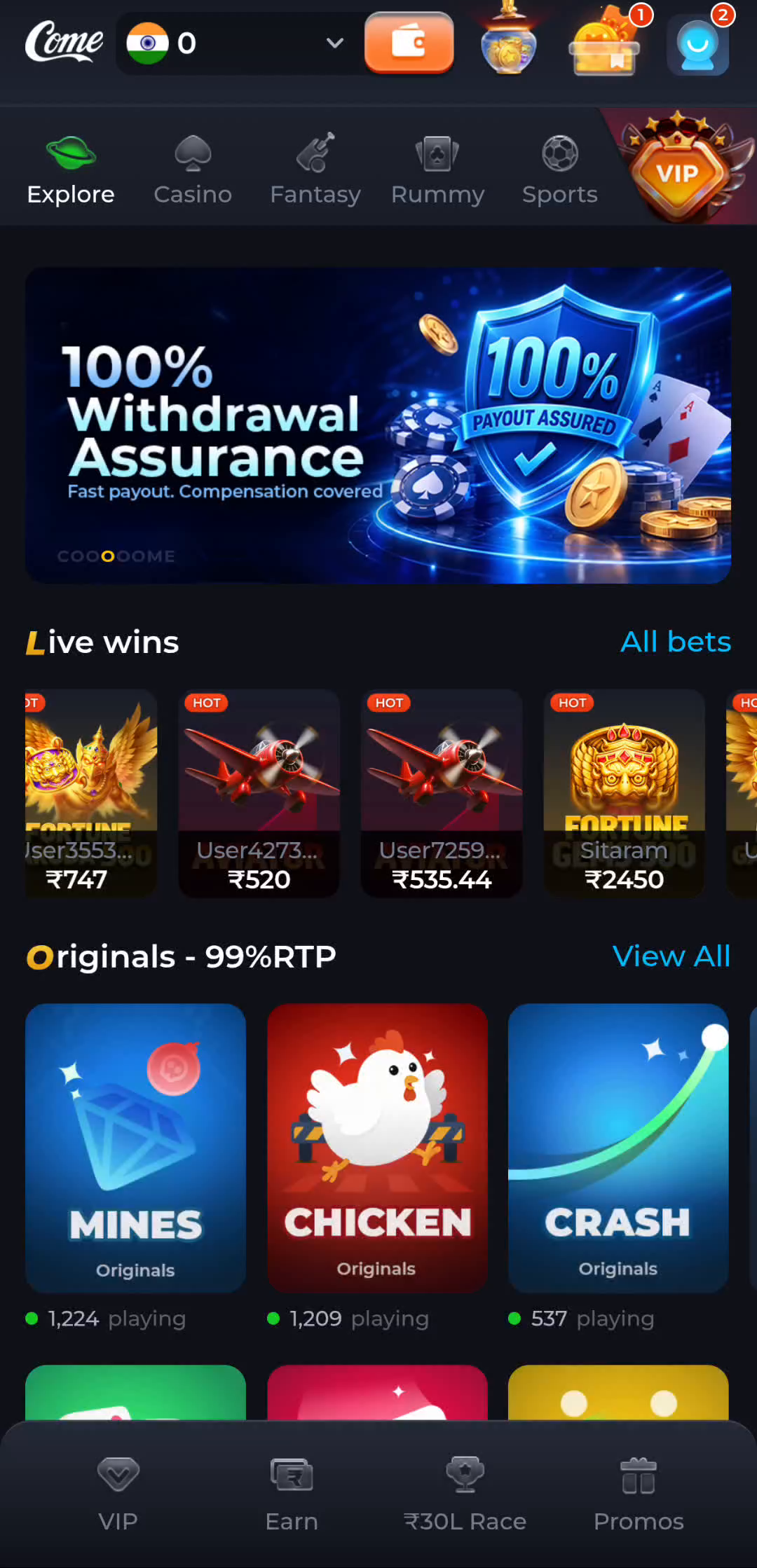
The complete COME home screen separates categories and individual activities. Read the named category and its actual rules before drawing conclusions about a particular feature.
Identify the exact device stage
A completed browser download says that a file was saved. Android separately decides whether it can install the package, and the app separately handles its first loading and account access. Keep Play Protect active and read the full device message. A working installation is worth preserving while you investigate a different release or an unexplained error.
What a completed answer looks like
You have opened the installed app rather than repeatedly reopening the package installer.
Continue from the stage you have actually confirmed. Preserve the exact message when a step remains unresolved.
Choose another specific COME guide